
Tailor a page to every ad
People click an ad because of what it said. When the page says the same thing, more of them act. Coframe makes a version of your landing page for each Google ad group or Meta ad, in that ad's own words. You review every version. Nothing changes on your site until you launch.
One page, a version per ad
PAGE AS PUBLISHED · start.coframe.com/demo
AI that increases your revenue.
Ad group: CRO Performance Optimization
AI-powered conversion optimization.
Match 6 → 9Ad group: Landing Pages & UX
Test & optimize your landing pages.
Match 4 → 8Ad group: Personalization & Content
AI-powered personalization that converts.
Match 5 → 8.5
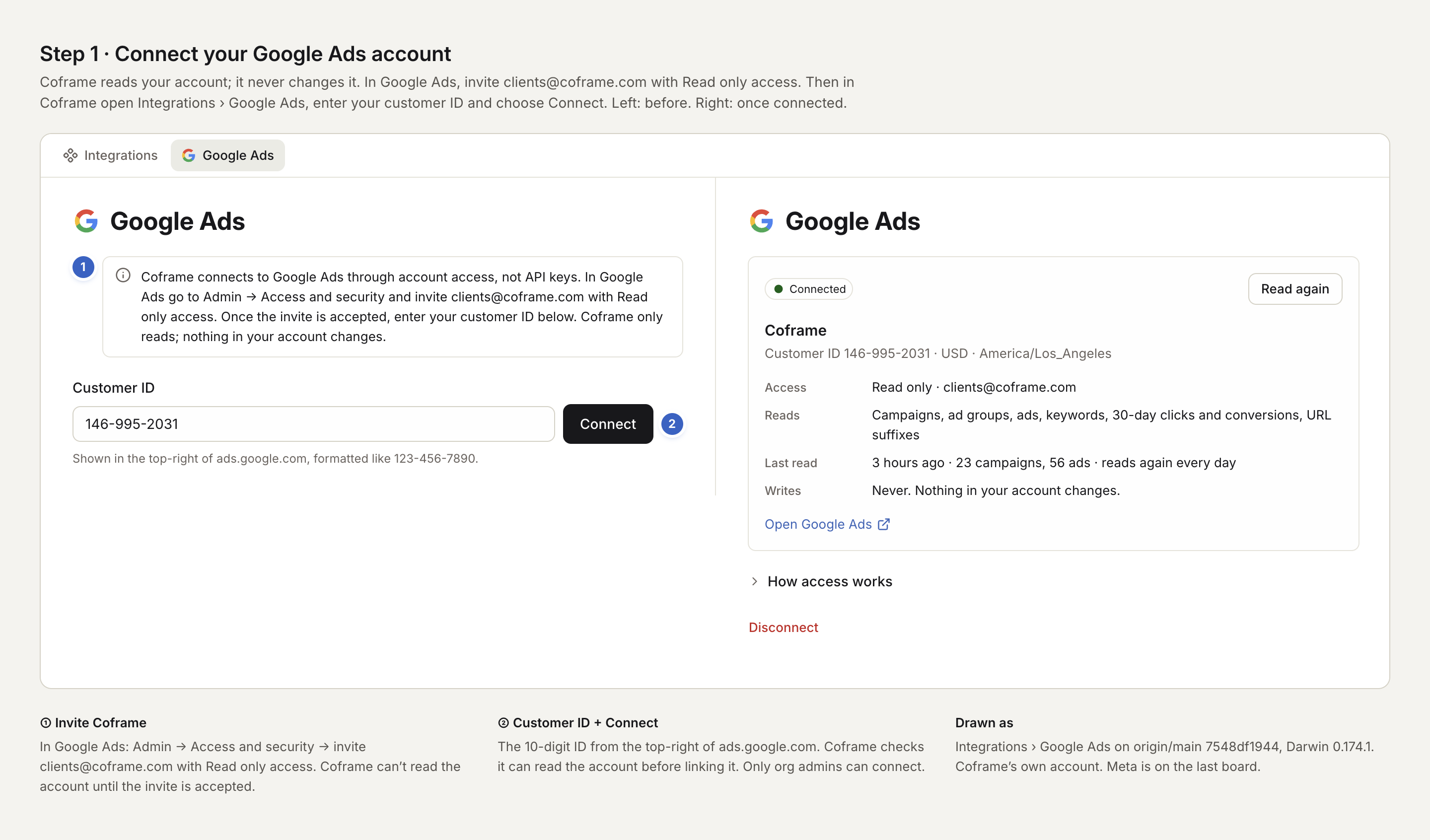
Connect your ad account
Live todayGoogle Ads
Step 1: In Google Ads, open Admin › Access and security. Invite clients@coframe.com with Read only access.
Step 2: In Coframe, open Integrations and choose Connect on Google Ads.
Step 3: Enter your customer ID, from the top right of ads.google.com, and choose Connect.
Coframe reads your campaigns, ad groups and ads once a day. It never changes anything in your account.
Meta Ads
Assign your ad account to Coframe's business in Meta Business Manager, then ask us to connect it.
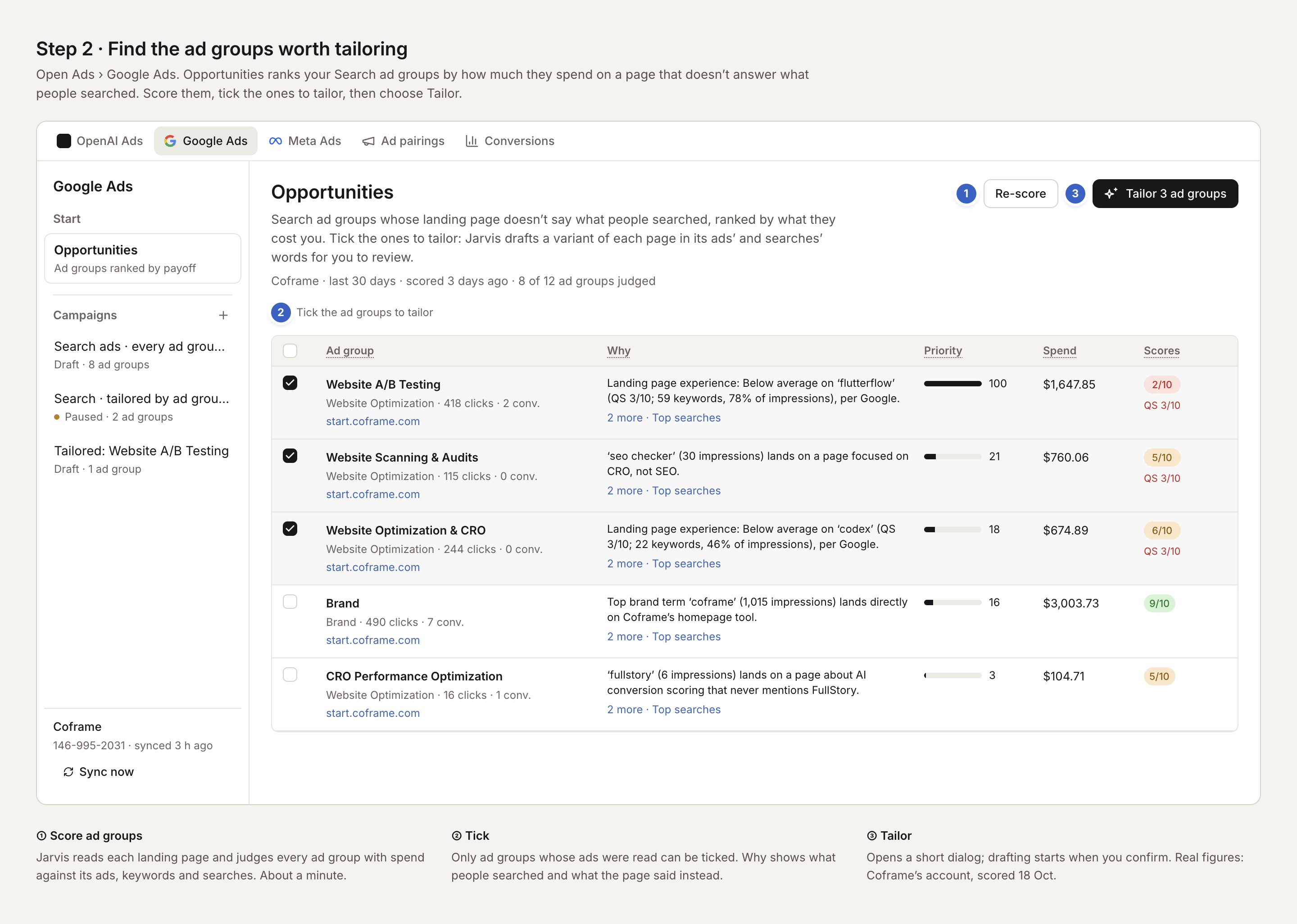
Find the ad groups worth tailoring
Step 1: Open Ads, then Google Ads. Opportunities opens first.
Step 2: Choose Score ad groups. Jarvis reads each landing page and judges every ad group that spent money in the last 30 days. It takes about a minute.
Step 3: Read Why: it shows what people searched and what the page said instead. Priority puts the costliest gaps first.
"Which of my ad groups would gain most from a tailored page?"
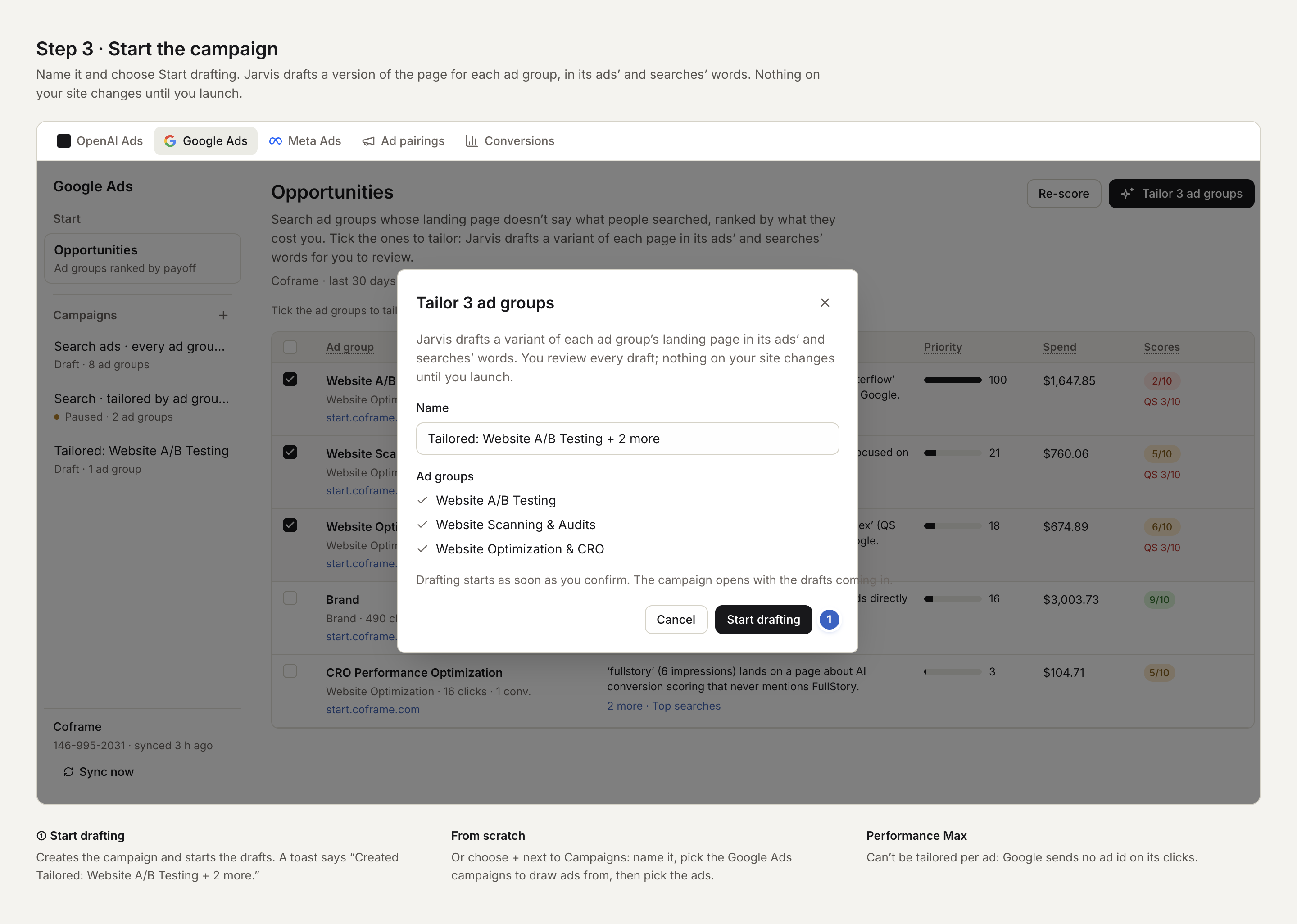
Start a campaign
Step 1: Tick the ad groups to tailor.
Step 2: Choose Tailor 3 ad groups, name the campaign, and choose Start drafting.
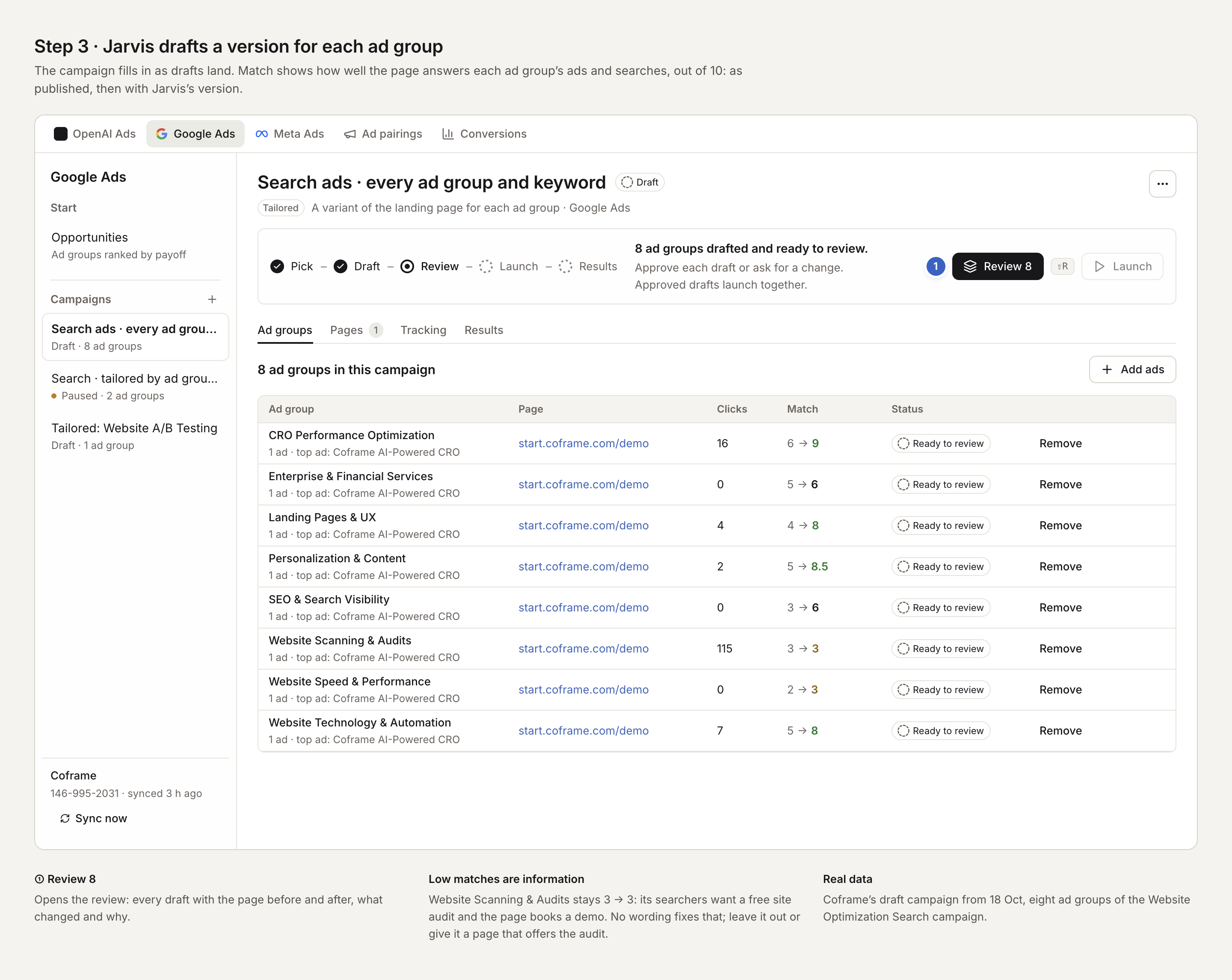
Step 3: Jarvis drafts a version of the page for each ad group. The campaign fills in as the drafts land.
Meta: in Ads › Meta Ads, choose New campaign. Pick the Meta campaigns to draw ads from, then pick the ads.
Review each version
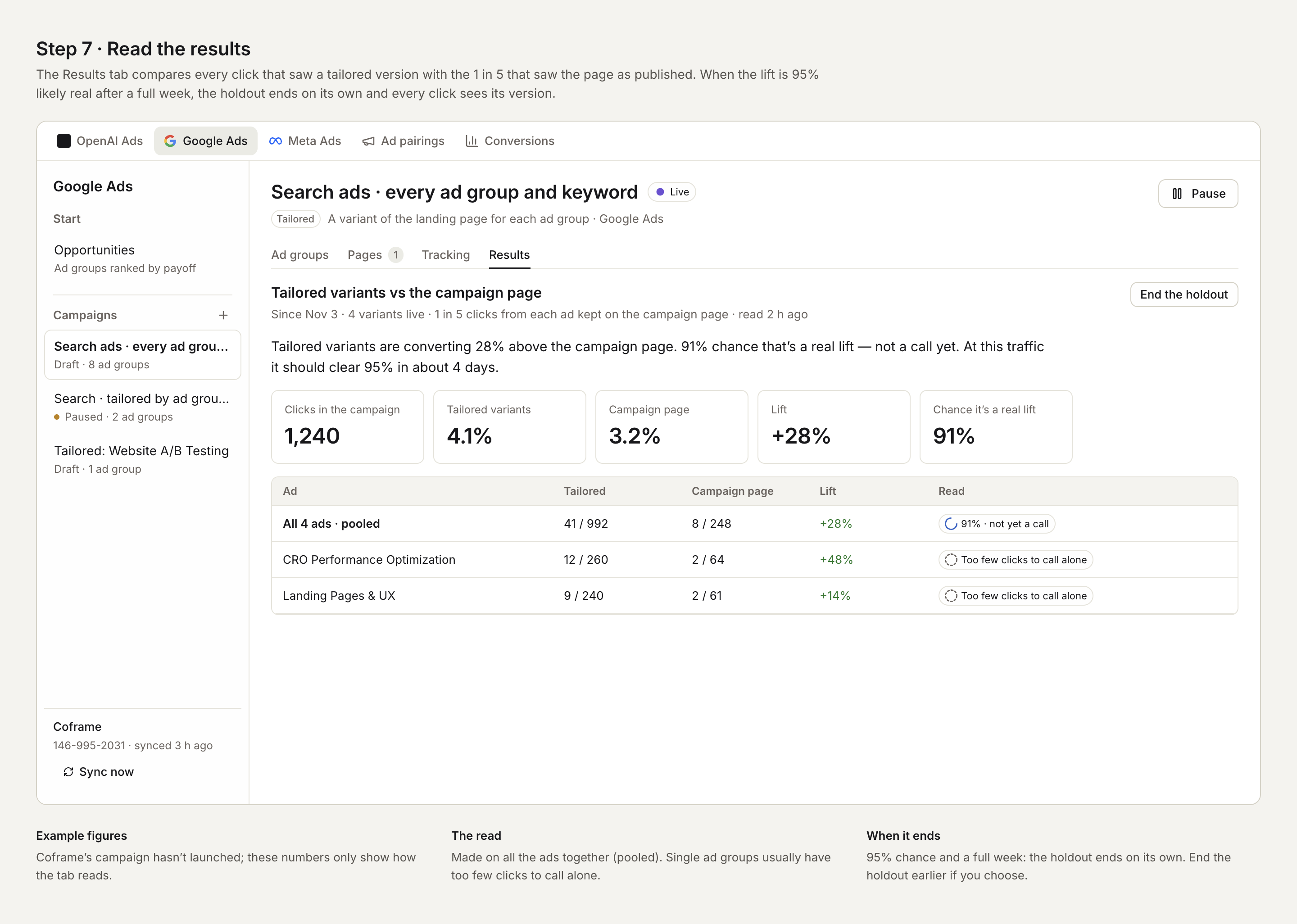
Step 1: Choose Review.
Step 2: Compare the page as published with Jarvis's version. Read what changed and why.
Step 3: Choose Approve, Ask for a change, or Remove. Ask for a change takes a short note, like "Say 'website personalization' in the headline."
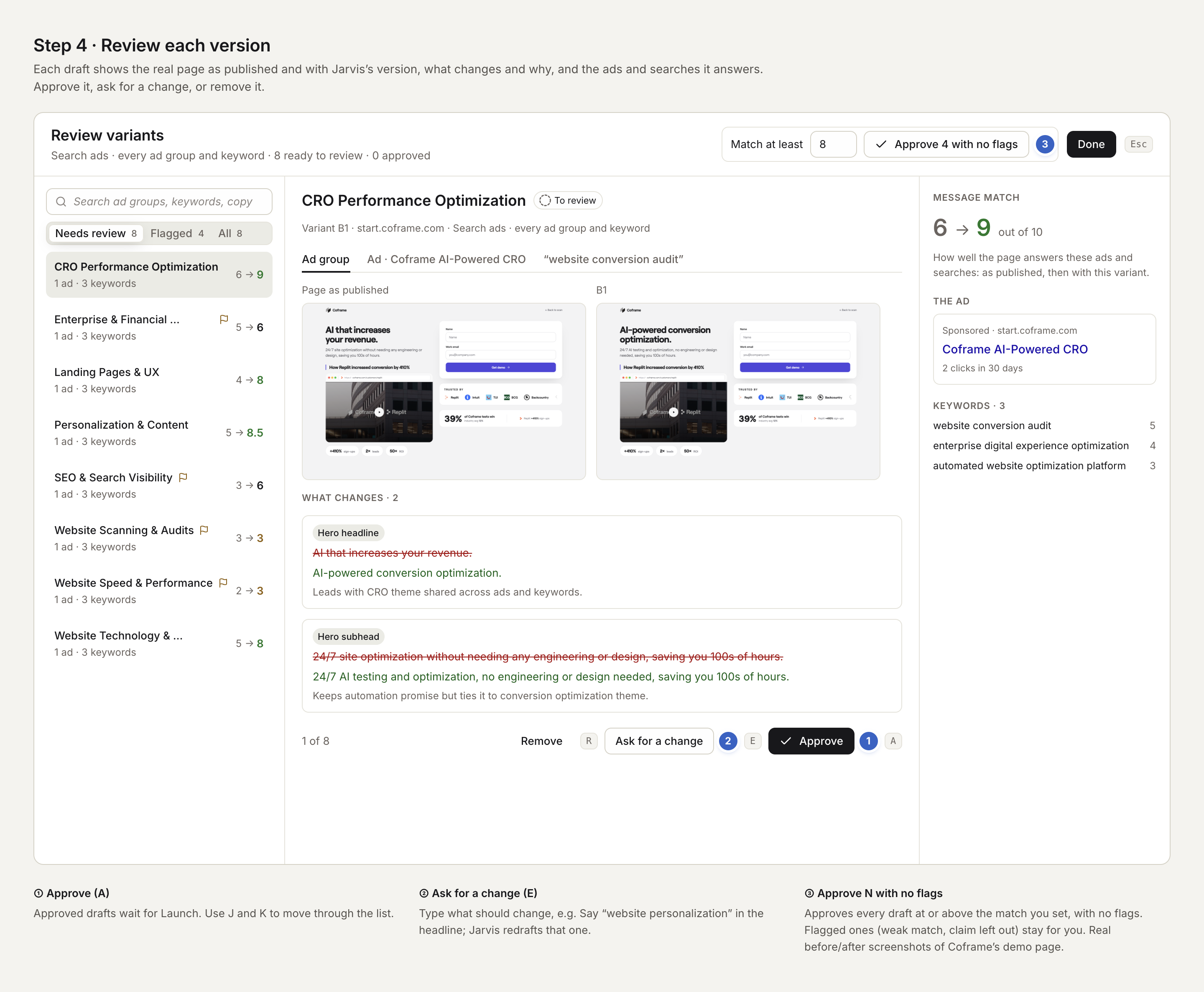
Make clicks say which ad they came from
A version only shows to clicks that carry the ad's id.
Step 1: Open the campaign's Tracking tab.
Step 2: Copy the line. In Google Ads, paste it into Admin › Account settings › Tracking › Final URL suffix. For Meta, paste it into the URL parameters of each ad.
Step 3: Wait for Seen. Coframe watches real clicks and checks every 15 minutes.
If your account already tags clicks with a tracking template, the Tracking tab says so, and you have nothing to paste.
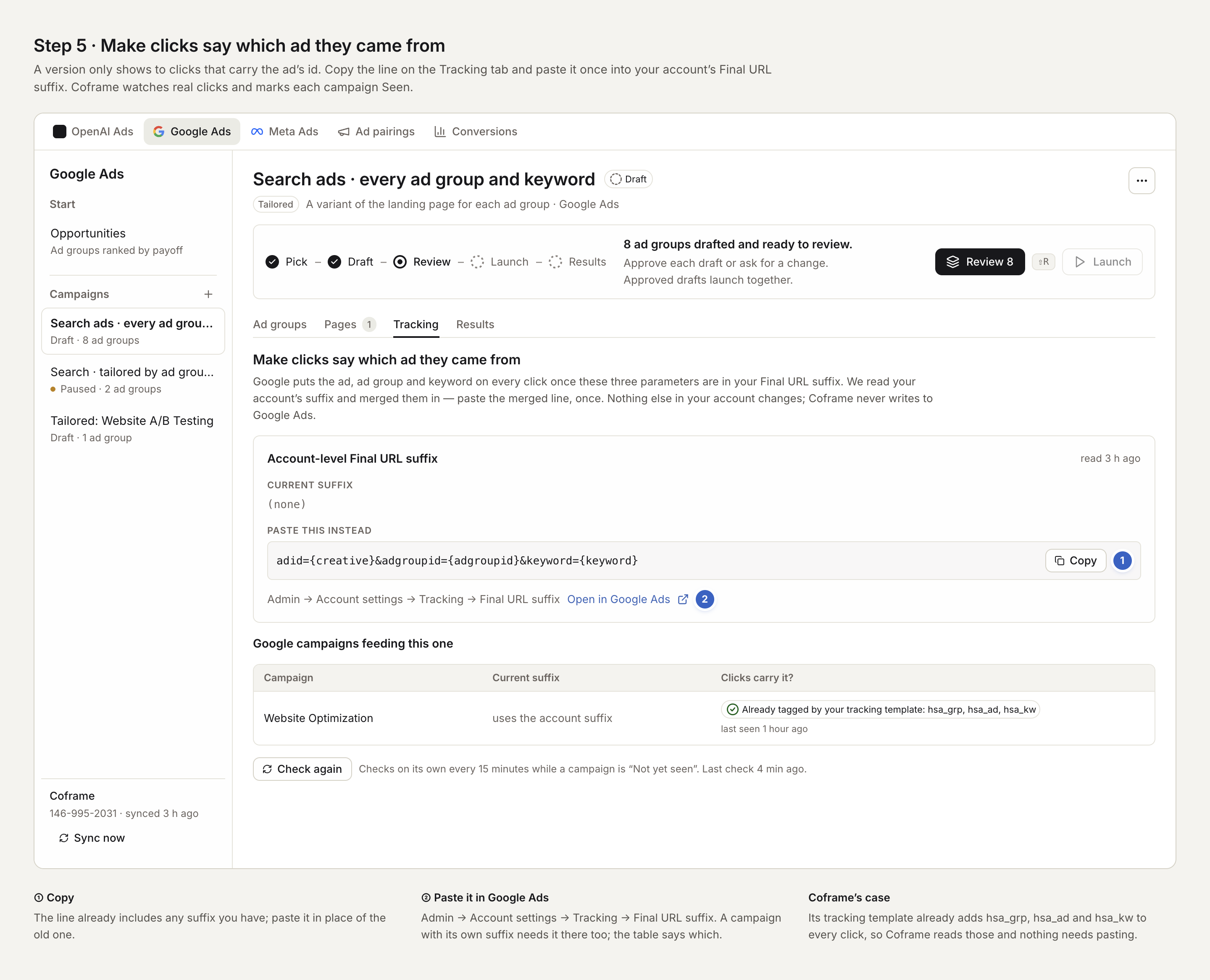
Launch
Step 1: Choose Launch.
Step 2: Check the list of versions and choose Launch. Only clicks from those ads see their version.
If the Launch button asks you to contact Coframe, ask us and we launch it with you.
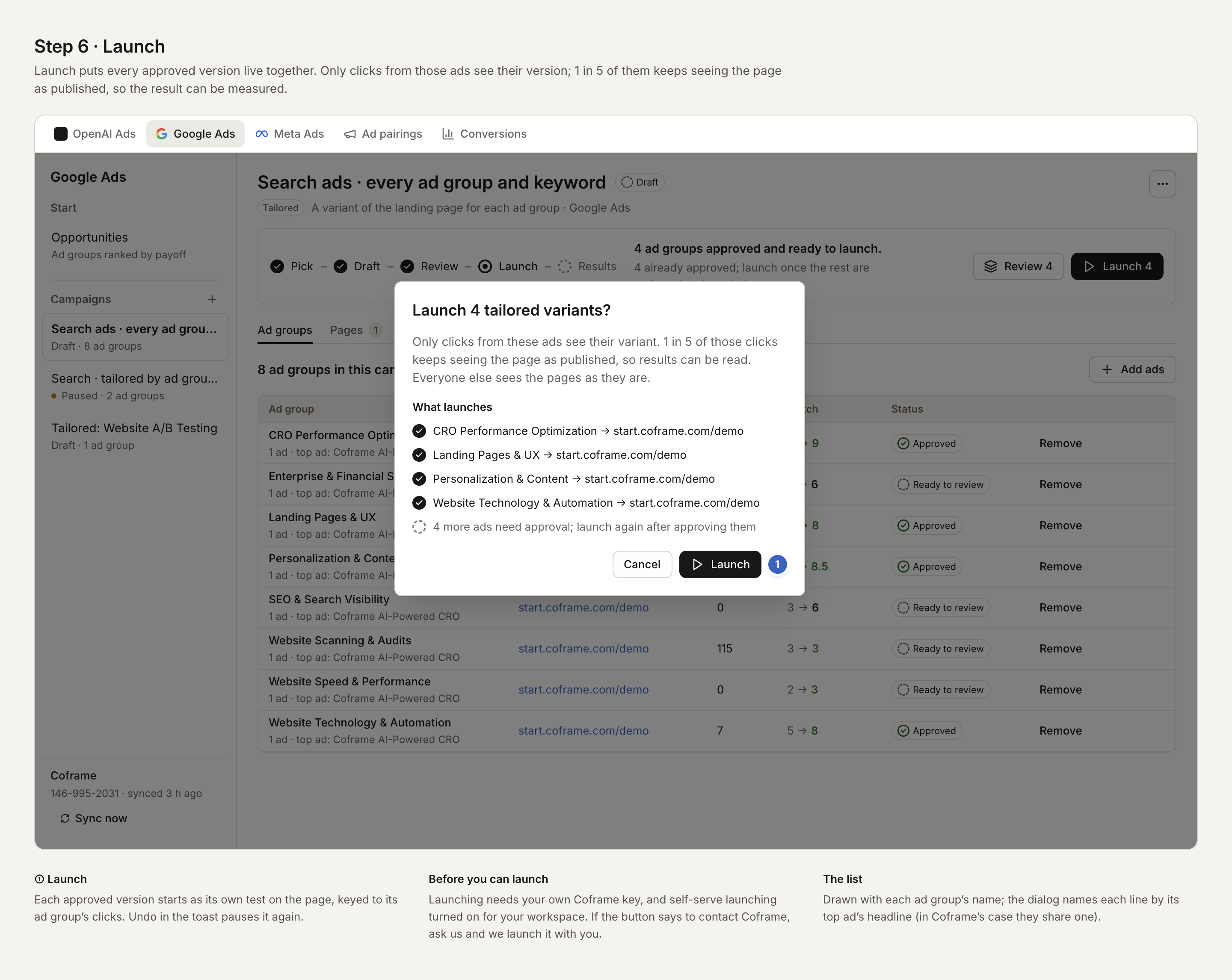
Read the results
The Results tab compares the clicks that saw a version with the 1 in 5 that saw the page as it is. When the lift is 95% likely to be real after a full week, the holdout ends on its own, and every click sees its version.
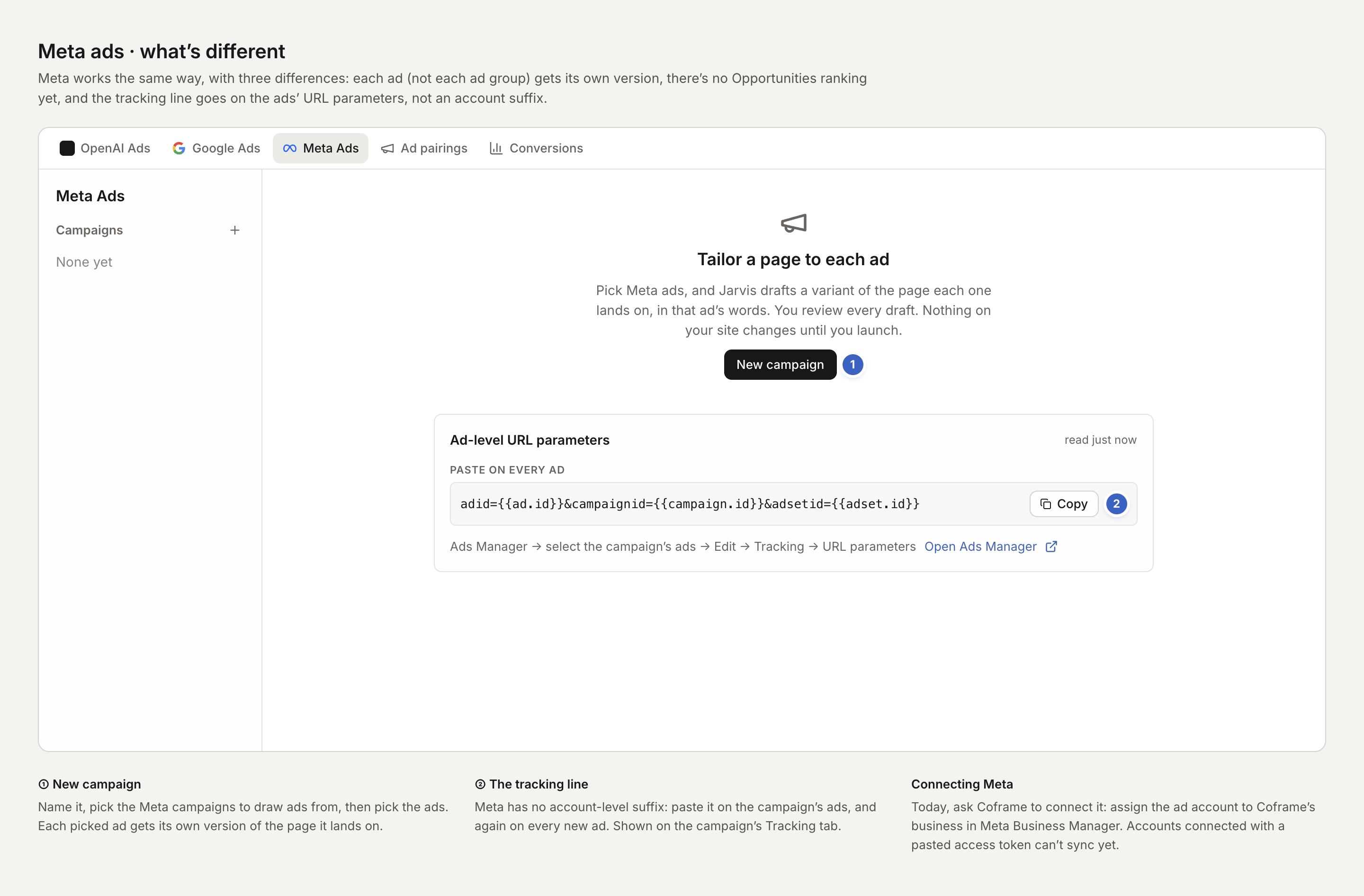
Meta ads: what's different
Meta works the same way, with three differences. Each ad gets its own version, not each ad group. There is no Opportunities ranking yet. And the tracking line goes on each ad's URL parameters, not an account-wide suffix, so paste it again on every new ad.
Good to know
Coframe never changes your ads. It only reads them. Jarvis may suggest new ad copy; paste it into Google Ads yourself if you want it.
One page, many versions. Google: one version per ad group, and an ad or keyword inside it can get its own line of copy. Meta: one version per ad.
Performance Max can't be tailored per ad. Google doesn't say which ad a Performance Max click came from.
Everyone else sees your page as it is. Only clicks from a tailored ad see a version.
Pause any time. Pause stops every version. The results so far are kept.
In beta. Tailoring is on for some workspaces. Ask us to turn it on for yours.