
Make pages from a table
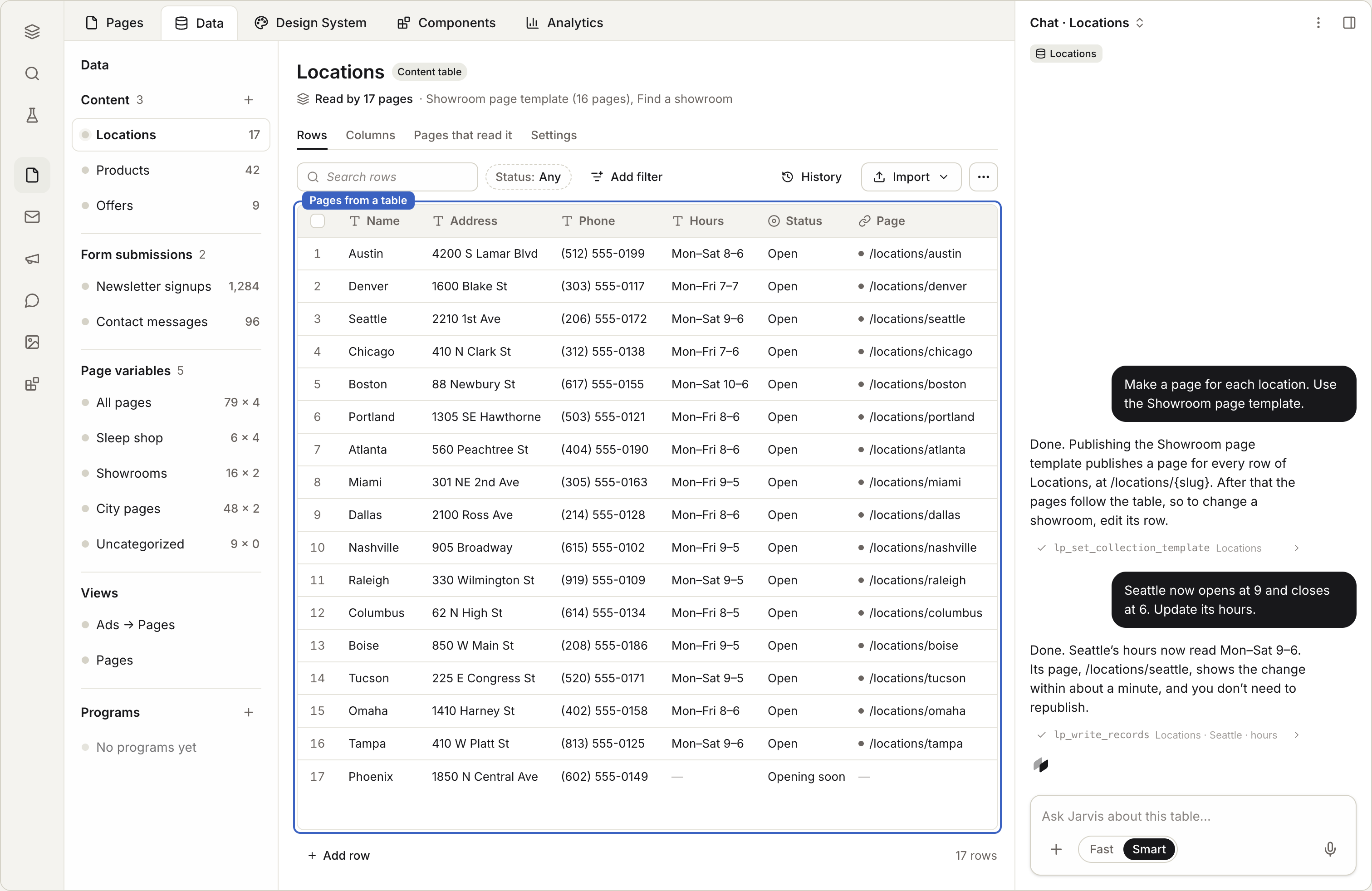
When many pages share one design, keep their content in a table. One page design plus one table gives you a page for every row. Edit a row, and its live page changes.
In this stage · 02 Build · 0 of 4 done
Before you start
Quick version
Data › New table → add your rows → the page's settings › Table and URL prefix → publish.
Steps
Step 1 · In Data
Make the table
Open the Data tab in Landing Pages. Choose New table, or ask Jarvis, Coframe's assistant: "Create a locations table with city, address, phone and hours."
Give it a short key, like
locations. Pages use the key to find the table. You can't change it later, so choose well.Add your rows. Type them in the grid, or choose Import CSV. Coframe shows a preview, and nothing is saved until you confirm.
Step 2 · In your page
Put the table on your pages
Open your page and ask Jarvis: "Make this a page for each row of the locations table."
Or do it yourself: in the page's settings, choose the Table and a URL prefix, like
/locations/.Each row becomes a page at its own address.
Publish. Add a row later, and a new page appears.
To show a table inside one page instead, like a list of jobs or prices, ask Jarvis: "Show the jobs table on this page."
Check it worked
Good to know
- Edits reach live pages fast. Change a row and the page updates in about a minute. No new publish.
- History. Every change to a table in the last 30 days is listed, with who made it. You can undo any of them.
- Secret columns. Mark a column Secret to keep it off your pages.
- Address changes are handled. If a row's address changes, the old one sends visitors to the new one.
- Limits. Each row can hold up to 256 KB. A long text column holds up to 100,000 characters.
Coming soon
- Keep the table in a Google Sheet. Coming soon
- Review table changes before they go live. Coming soon
Next in this stage · 10 min
Collect form responses
A form on a Coframe page can save every answer to a table.