
Collect form responses
A form on a Coframe page can save every answer to a table. You don't need a form tool or a developer.
In this stage · 02 Build · 0 of 4 done
Quick version
Ask Jarvis for the form → publish to staging → send a test → Data › Form submissions → publish to production.
Steps
Step 1 · With Jarvis
Add the form
Ask Jarvis, Coframe's assistant: "Add a waitlist form with email and plan that saves to a waitlist table."
Jarvis makes the table, builds the form in your brand, and connects the two.
Step 2 · On staging
Send a test
Publish to staging and send the form once yourself.
Open the Data tab, then Form submissions, and check that your test arrived.
Step 3 · Publish
Publish to production
Publish to production.
Check it worked
Read the answers
- Open the table in Data to see answers as they arrive. Sort, filter, or export them as CSV.
- Each answer shows when it came in and which variant of the page the visitor saw.
- Ask Jarvis: "How many waitlist sign-ups came in this week, by plan?"
Keep spam out
Ask Jarvis to turn on any of these:
- A hidden trap field that people never see and bots fill in.
- Cloudflare Turnstile, a check that stops most bots without a puzzle.
- Limits on how often one visitor can send the form.
Good to know
- Test answers stay separate. Answers from staging or the editor are marked as tests and deleted after 30 days.
- Answers are private. Visitors can't see each other's answers.
- Send sign-ups to Contacts. Ask Jarvis to "add every new waitlist email to Contacts," and each new answer becomes a contact.
Coming soon
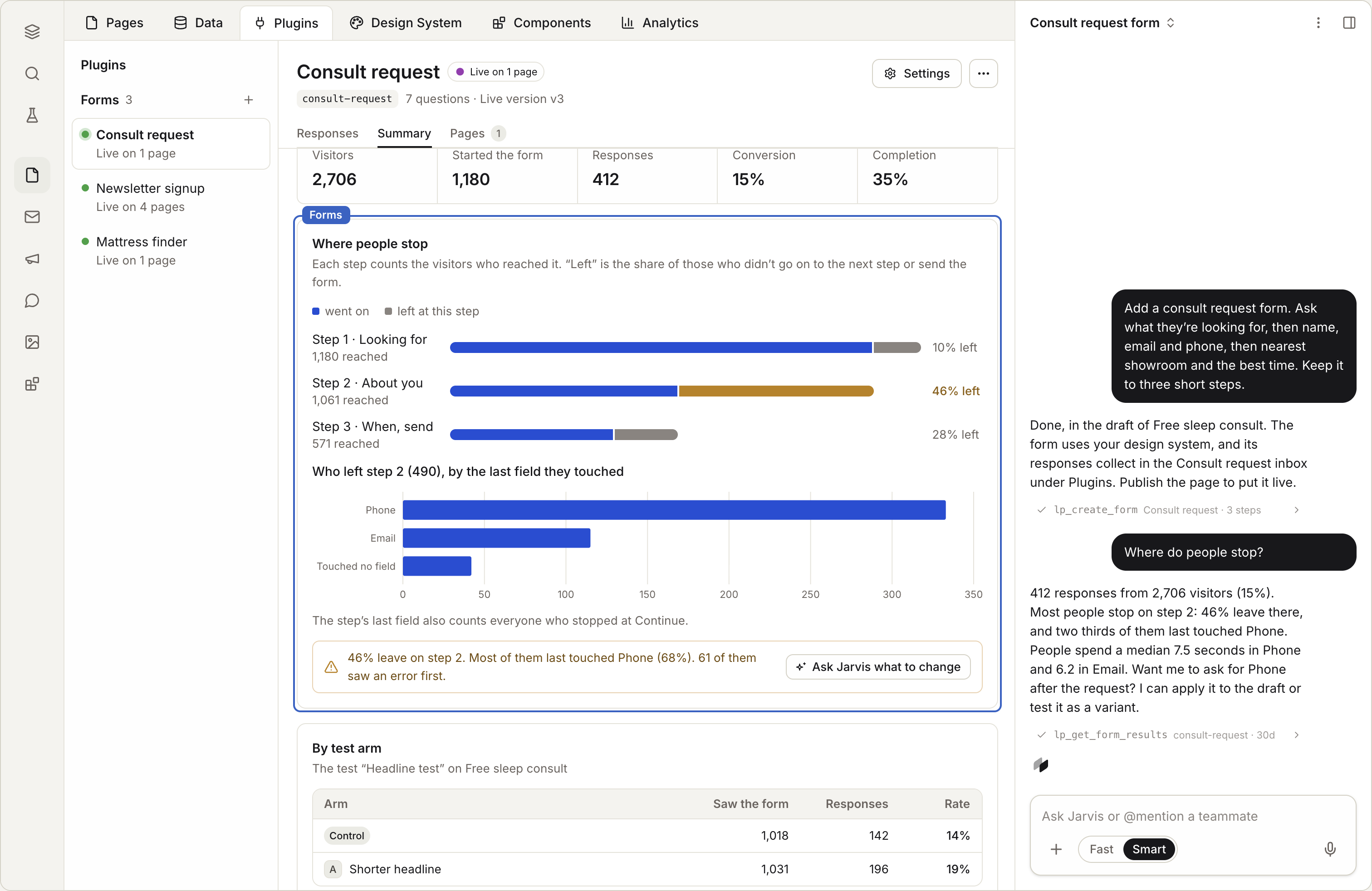
- Forms you build and edit by hand, with answers sent to email, Slack or a webhook, and a view of where people stop. Coming soon
- Quizzes and calculators on your pages. Coming soon
Last lesson in 02 Build · Next stage
03 Review
Annotate the draft so your team can see what to change. Nothing is live until you publish.