
Reuse sections across pages
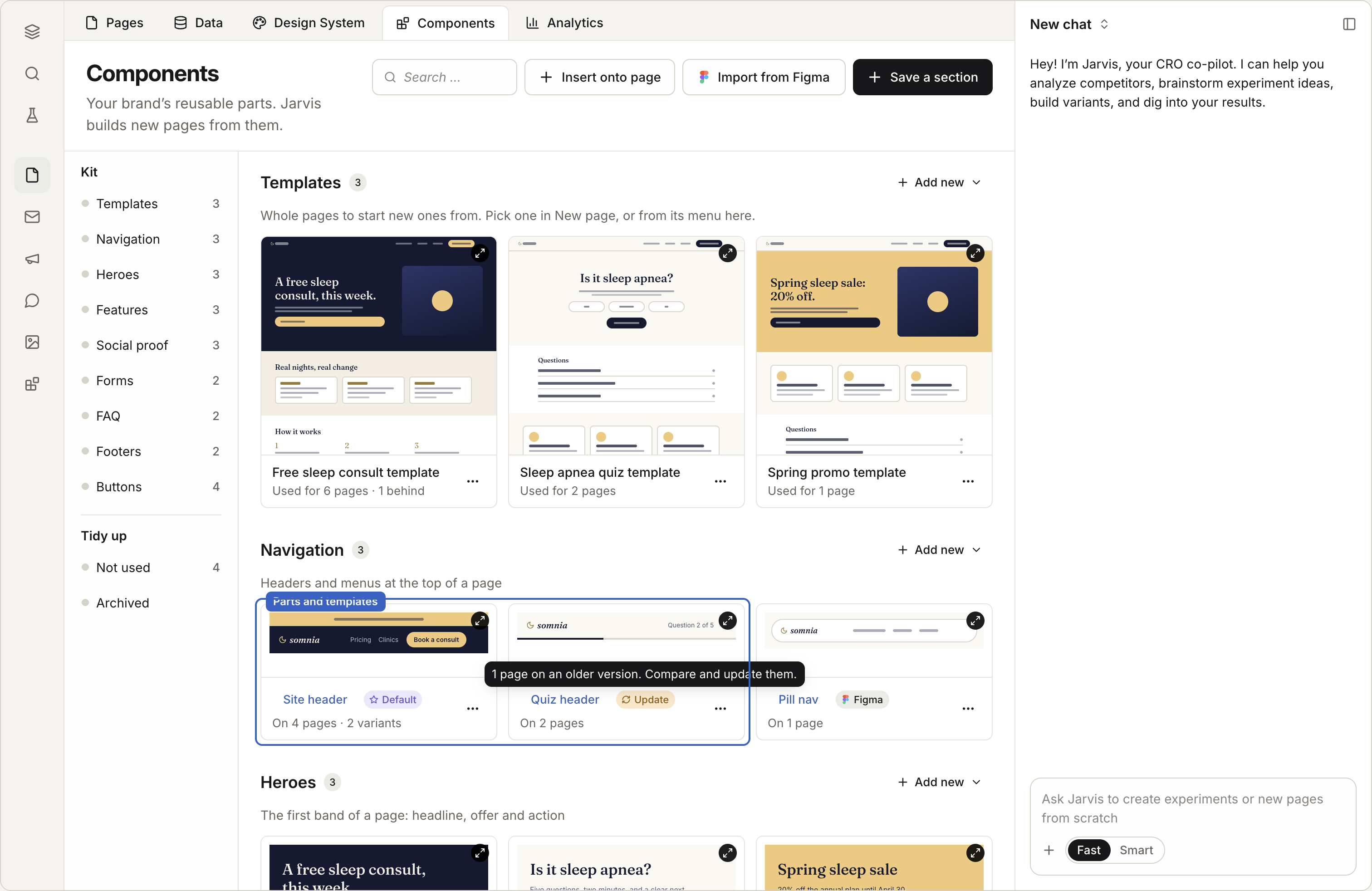
A part is a section you save once and use on many pages: a header, a footer, a pricing table, a strip of reviews. Change the part, and every page that uses it follows.
In this stage · 01 Brand · 0 of 2 done
Quick version
Components › Save a section from a page → name it → add it to pages → change it once.
Steps
Step 1 · In Components
Save a part
Open the Components tab.
Choose Save a section from a page. Pick the page and the section.
Give it a name, like "Main header."
Choose who can use it: just this site, or every site in your organization. Use the second for headers and legal footers.
Step 2 · In the editor
Use a part on a page
Open the Components panel in the editor and drag the part onto the page.
Or ask Jarvis, Coframe's assistant: "Add the pricing part under the hero."
Step 3 · In Components
Change a part
Open the part in the Components tab and edit it.
The change reaches every page that uses it. Publish those pages to put it live.
Step 4 · On one page
Make one page different
Unlink the part on that page. That page keeps its own copy and stops following the part.
Check it worked
Good to know
- Some parts have fields. A part can let each page set its own headline or button text while the design stays shared.
- Deleting a part breaks nothing. Pages that used it keep a copy of its last version.
- Import from Figma. Bring in Figma components as parts. Their Figma properties become fields.
Coming soon
- Templates. Save a whole page as a starting point, and let pages built from it take later updates. Coming soon
Next stage · 02 Build
Build
Click anything to change it, or ask Jarvis. Make one page, or a page for every row in a table.