
Capture your brand
Coframe reads your website and writes down how your brand looks and sounds. Jarvis, Coframe's assistant, uses it on every page it builds. You do this once.
In this stage · 01 Brand · 0 of 2 done
Before you start
Quick version
Landing Pages › Design System › type your address → wait → check Coverage → fix with Jarvis.
Steps
Step 1 · In Design System
Start the capture
Open Landing Pages, then the Design System tab.
Type your website's address and start the capture.
Step 2 · In Design System
Wait while it reads
Wait a few minutes. Coframe opens your site in a real browser and reads several pages.
Step 3 · In Design System
Read the result
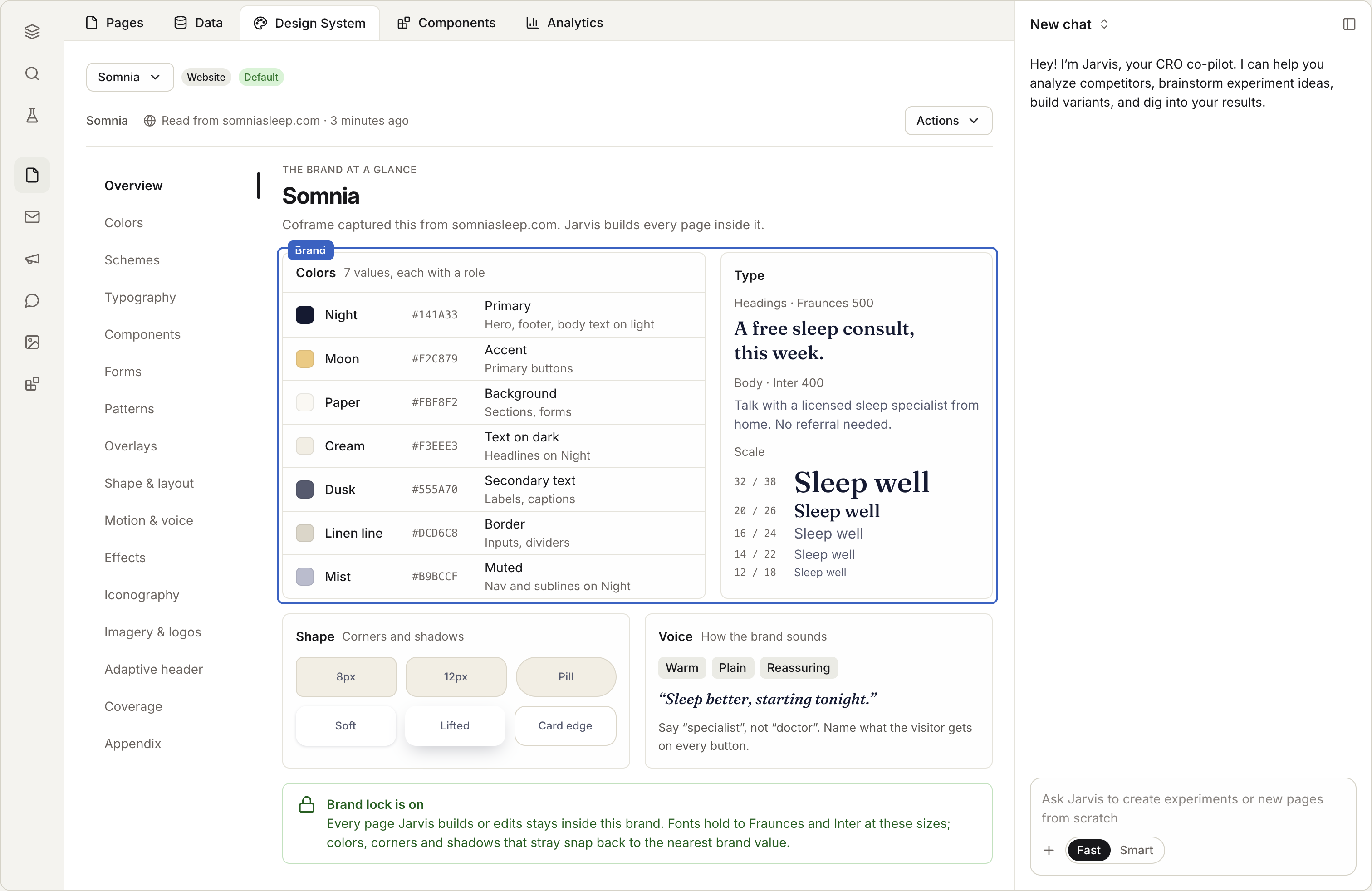
Read the result. It's a short book with sections for Colors, Typography, Shape, Components, Forms and more.
Check Coverage. It says how much of the site Coframe read and how sure it is.
Step 4 · In the chat
Fix what looks wrong
Fix anything that looks wrong by asking Jarvis. For example: "Make the primary color #0055FF" or "Use Inter for headings."
Check it worked
Good to know
- Pages stay on brand. Pages Jarvis builds use your fonts and colors. Off-brand colors, corners and shadows are snapped back to your brand.
- Every change is saved. Each edit to the brand is kept, and you can undo it.
- Old pages don't change on their own. When you change the brand, pages you already built stay as they are. Ask Jarvis to bring a page up to date.
- Fonts, colors and images from the capture appear under Assets, next to anything your team adds.
If something goes wrong
- Your site blocks robots. Some sites block automated browsers. Coframe tells you what it saw. Try again later, or try another address on the same brand. You can also upload your brand files and ask Jarvis to build the design system from them.
- The capture missed something. Tell Jarvis what's missing, or give it another page of your site to read.
Next in this stage · 5 min
Reuse sections across pages
Save a section once and use it on many pages.